Performance
How to Improve Website Speed: A Practical Guide for Business Websites
How to measure what visitors actually experience, find the real bottleneck, and fix the common causes of a slow business website in the right order.

On this page
A slow website rarely has one cause. It is usually a handful of separate problems, some on the server, some in the page, some added later by a plugin or a marketing tag, and they add up. That is why "make the site faster" so often ends with a caching plugin installed, a score that barely moves, and nobody sure what changed.
This guide takes the slower, more reliable route: measure what visitors actually experience, find the specific bottleneck on the pages that matter, fix the largest problem first, and measure again. It is written for business owners and marketing teams who want to understand the work well enough to judge it, whether they do it themselves or ask a developer.
What "fast" actually means
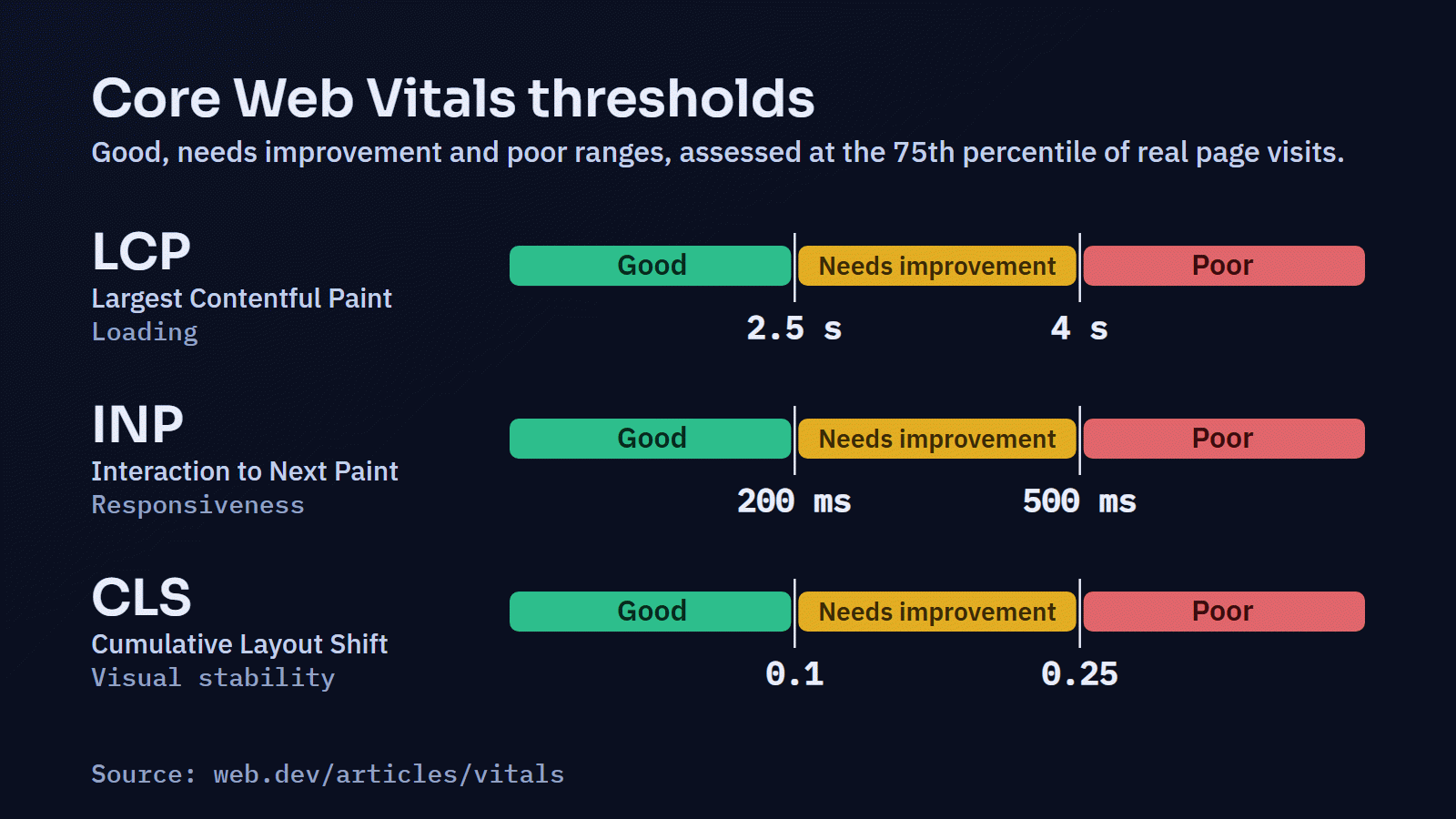
Speed is not one number. A page can show its first text quickly and still feel slow because the main image arrives late, or because the page freezes for a moment every time someone taps a menu. Google's Core Web Vitals describe three parts of that experience, and they are a sensible starting point because they measure what people feel rather than what a server log says.
- Largest Contentful Paint (LCP): how long it takes for the largest piece of content in the first screen, usually a hero image or the main heading, to appear. The "good" threshold is 2.5 seconds or less.
- Interaction to Next Paint (INP): how quickly the page responds visually when someone clicks, taps or types. Good is 200 milliseconds or less. INP replaced an older metric, First Input Delay, in 2024.
- Cumulative Layout Shift (CLS): how much the content jumps around while the page loads. Good is 0.1 or less.
Two further measurements help explain the three above. Time to First Byte (TTFB) tells you how long the server takes to start sending the page, and total page weight (the size of everything the page downloads) tells you how much work the visitor's connection has to do.
Lab data and field data are different things
There are two kinds of measurement, and confusing them causes a lot of wasted effort.
Field data comes from real visitors using real devices and connections. Google collects it from Chrome users who have opted in (the Chrome User Experience Report) and shows it in PageSpeed Insights and the Core Web Vitals report in Search Console, but only when a page or site has enough traffic. Field data is what Google uses when it considers page experience, and it reflects your actual audience.
Lab data comes from a test run in a controlled environment, such as the Lighthouse report in PageSpeed Insights or in Chrome's developer tools. It is repeatable and detailed, which makes it ideal for diagnosing problems, but it is a simulation of one device on one connection. A Lighthouse score of 95 does not mean your visitors are having a good experience, and a score of 60 does not mean they are having a bad one.
Use field data to decide whether there is a problem and on which pages. Use lab data to find out why.
Step 1: Measure before you change anything
Every optimisation should start with a baseline, because without one you cannot tell whether a change helped, did nothing, or made things worse.
- Pick representative pages, not just the homepage. Choose one of each important template: the homepage, a main service or product page, a blog article, and any page where people convert, such as a contact form or checkout. Templates matter more than individual URLs, because a fix to a template fixes every page that uses it.
- Test on mobile first. Most lab tools default to a mid-range phone on a slower connection for a reason: that is where problems show up. A site that feels instant on an office desktop can be sluggish on a phone in a car park.
- Record the conditions. Note the date, the tool and its version, and whether you tested mobile or desktop. Lab results vary from run to run, so run each test three times and keep the middle result.
- Write it down. A simple table is enough.
| Page | Field LCP | Field INP | Field CLS | Lab LCP (median of 3) | Page weight | Notes |
|---|---|---|---|---|---|---|
| Homepage | ||||||
| Main service page | ||||||
| Blog article | ||||||
| Contact page |
If the field columns say "not enough data", that is normal for smaller sites. Rely on lab data, but treat it as a guide rather than a verdict, and consider adding real-user monitoring later if speed is important to your business.
Step 2: Find the bottleneck
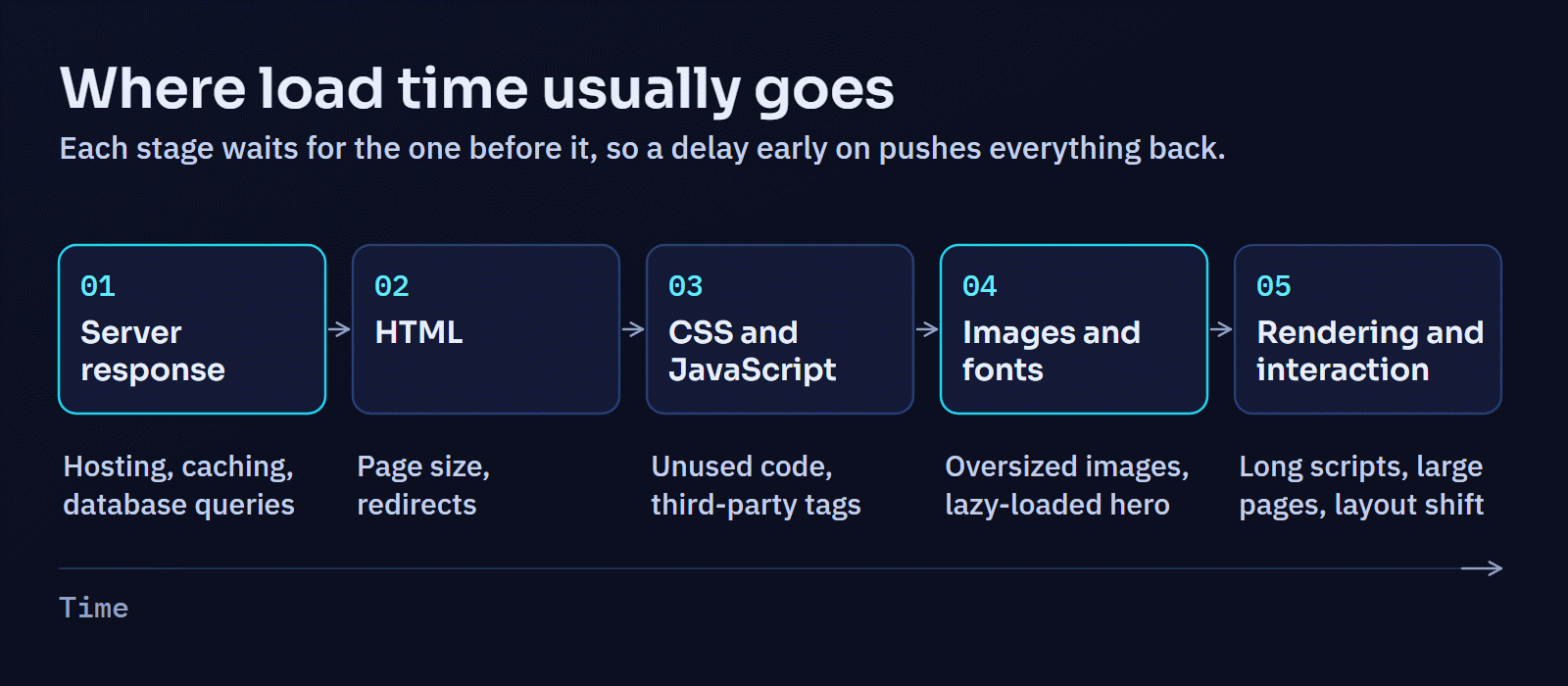
Lighthouse and the browser's performance panel will point you at specific problems. These are the causes that come up most often on business websites, with what each one looks like in a report.
Slow server response
If TTFB is high (as a rough guide, consistently above about 0.8 seconds), the browser is waiting before it can do anything at all, and no amount of image compression will fix that.
Common causes are hosting that is underpowered or shared with too many other sites, pages that are rebuilt from the database on every visit instead of being cached, slow database queries, too many plugins doing work on every request, and a server that is physically far from your visitors.
The usual fixes, roughly in order of effort, are page caching (serving a stored copy of pages that are the same for everyone), an object cache for repeated database work, a current version of PHP or whatever language the site runs on, finding and fixing slow queries, a content delivery network (CDN) for visitors far from the server, and, if all of that is in place, better hosting.
Be careful with caching on pages that differ per visitor, such as account areas, baskets or anything behind a login. Caching those incorrectly can show one person's information to another. Good caching setups exclude them by default; it is still worth checking.
Heavy images
Images are the most common reason a page is heavy. Typical problems are photos uploaded straight from a camera at 4,000 pixels wide and displayed at 800, old formats where a modern one would be a fraction of the size, and every image on the page loading at once.
- Resize to the size it is displayed at, and use responsive images (
srcsetandsizes) so phones download a smaller file than large desktop screens. MDN has a clear guide to responsive images. - Use modern formats. AVIF and WebP are typically much smaller than JPEG or PNG for the same visual quality, and every current browser supports WebP.
- Set the width and height on every image so the browser can reserve its space before it arrives. This prevents layout shift.
- Lazy-load images below the first screen, so they download only when someone scrolls towards them.
- Do not lazy-load the main image at the top of the page. It is usually the LCP element, and lazy-loading it delays exactly the measurement you are trying to improve. Many themes and plugins lazy-load everything by default, so check this one specifically. Marking that image with
fetchpriority="high"helps the browser fetch it early.
Too much CSS and JavaScript
Before a browser can show a page, it has to download and process the stylesheets, and scripts can hold up both loading and interaction. Themes and page builders often load styling and scripts for every feature they support on every page, and each plugin can add its own.
Start by removing what you do not use: deactivated features, plugins installed for a one-off task, a slider library loaded on every page for one slider on the homepage. Then defer scripts that are not needed to show the page, so they load after the content. "Minify and combine" settings help a little, but removing unused code helps far more than compressing it.
Third-party scripts
Chat widgets, analytics, advertising pixels, heatmaps, A/B testing tools, embedded videos and social feeds all load code from someone else's server, and that code competes with your own page for the same device. They are often added over time by different people and never reviewed together.
List every third-party script on the site and ask what each one is used for and who looks at its data. Remove the ones nobody uses. For the rest, load them after the page is visible, after a user interaction (a chat widget can load when someone clicks the chat button), or only on the pages that need them. Where consent is required, load them only after consent.
Fonts
Web fonts are easy to overdo. Each family, weight and style is a separate file. Use as few weights as the design genuinely needs, serve them in WOFF2, use font-display: swap so text appears in a fallback font rather than staying invisible, and preload only the one or two files used in the first screen. Choosing a fallback font with similar proportions reduces the jump when the web font arrives.
Layout shifts
If CLS is poor, look for images and embeds without dimensions, banners or notices inserted at the top of the page after it loads (cookie notices are frequent offenders), adverts that resize themselves, and fonts that change the length of headings when they load. The fix is almost always to reserve the space in advance.
Slow interactions
If INP is poor, the page is busy when someone tries to use it. That usually means long-running JavaScript, often from a page builder, a large number of plugins, or third-party scripts, or a very large page with thousands of elements that the browser has to recalculate after each change. The browser's performance panel shows which scripts run during a slow interaction. Fixes include removing or delaying the scripts responsible, breaking long tasks into smaller pieces, and simplifying very large pages.
Step 3: Fix the biggest problem first
With a list of problems, prioritise by impact on your key pages and by risk, not by how easy the fix sounds.
| Problem | Usually fixed by | Effort | Risk if done carelessly |
|---|---|---|---|
| Slow server response | Page caching, query fixes, current PHP, better hosting | Low to high | Personal data shown in cached pages |
| Oversized or old-format images | Resizing, AVIF/WebP, responsive images | Low to medium | Visibly degraded images |
| Main image lazy-loaded | Excluding it from lazy loading, raising its priority | Low | Very low |
| Unused plugins and scripts | Removing them | Low to medium | Removing something that is used |
| Third-party scripts | Removing or delaying them | Low | Broken tracking or consent |
| Too many fonts | Fewer weights, WOFF2, swap | Low | Small visual differences |
| Layout shift | Reserving space for images, embeds and notices | Low to medium | Very low |
| Slow interactions | Reducing and splitting JavaScript, simpler pages | Medium to high | Broken features |
Change one thing at a time where you can, and re-measure the same pages under the same conditions. If a change does not move the measurement it was meant to move, undo it rather than leaving it in place "just in case". Remember that field data takes about four weeks to reflect a change, because it is a rolling 28-day window.
Common mistakes
- Chasing a perfect score. The score is a summary of lab tests on one simulated device. Visitors experience the Core Web Vitals, not the score.
- Testing only on desktop. Most problems that matter appear first on mobile.
- Stacking optimisation plugins. Two plugins that both minify, combine or cache files can conflict and break pages in ways that are hard to trace. Use one tool for each job.
- Lazy-loading everything, including the image the page is waiting for.
- Treating a CDN as a cure. A CDN helps deliver files to distant visitors. It does not fix a slow database query or a heavy page.
- Optimising once. Sites slow down over time as content, plugins and tags are added. Without a check after each significant change, the work drifts away.
- Forgetting accessibility. Removing focus styles, replacing text with images or hiding content to improve a score makes the site worse for real people.
Keeping it fast
The most effective habit is a performance budget: a simple agreement about how heavy key pages may be and what LCP they should reach, checked whenever the site changes. Add a speed check to your routine maintenance, after plugin or theme updates, and before any new third-party script goes live. If the site has enough traffic, review the Core Web Vitals report in Search Console every month. Speed is also one part of technical health more broadly; our technical SEO checklist covers the rest, and website maintenance explains how to keep fixes like these from slipping.
When to bring in help
Many of the fixes above, such as resizing images, removing unused plugins and delaying third-party scripts, are within reach of a careful site owner. It is worth involving a developer when the server response is slow even with caching in place, when the theme or page builder itself is the source of most of the code, when interactions are slow and the cause is in JavaScript, or when the site runs on a custom application rather than a standard CMS.
Digital Solutions does this kind of measured performance work as part of its SEO, performance and accessibility service, including WordPress performance optimisation. The approach is the one described here: measure, find the bottleneck, fix it, and show the before-and-after numbers rather than promising a score. If your site feels slow and you are not sure why, describe the problem and you will get a straight assessment of where the time is going.