Maintenance & security
Website Maintenance and Security: A Practical Checklist for Business Owners
Who should do what, how often: updates, tested backups, access control, authentication, secure configuration, monitoring and a simple recovery plan for a business website.
On this page
- Decide who is responsible for what
- Keep software up to date
- Back up, and prove the backups work
- Control who has access
- Strengthen authentication
- Configure things securely
- Look after the domain and email
- Monitor, so you hear about problems first
- Plan for recovery
- A maintenance calendar
- What Digital Solutions can do here
A website is not finished when it launches. The software it runs on keeps receiving updates, certificates and domains expire, plugins are abandoned by their authors, staff come and go, and the people trying to break into websites keep looking for the ones nobody is looking after. Maintenance is the routine work that keeps a site secure, working and, if something does go wrong, recoverable.
No website can be made completely secure, and anyone who promises otherwise is overselling. What good maintenance does is make problems much less likely, make them noticed quickly when they happen, and make recovery a matter of hours rather than weeks. This checklist covers the essentials, in plain language, for owners who want to know what should be happening and whether it is.
Decide who is responsible for what
Many maintenance failures are not technical. Everyone assumed someone else was doing it: the business thought the developer was applying updates, the developer thought the host was taking backups, and the host's backups covered the server but not the database.
Write down who does each of these, even if the answer is "us":
| Task | Who usually does it | How often |
|---|---|---|
| Software updates (CMS, plugins, themes, framework) | Developer or agency, or in-house | Monthly at least; security fixes promptly |
| Server and PHP version updates | Host (managed) or developer (self-managed) | As released and supported |
| Backups | Host and/or developer, configured deliberately | Daily for most sites |
| Restore tests | Developer | At least twice a year |
| User accounts and access review | Site owner | Quarterly |
| Domain and certificate renewal | Site owner (domain), host or developer (certificate) | Annually; automatic where possible |
| Monitoring and alerts | Developer or a monitoring service | Continuous, with someone receiving alerts |
| Content checks (forms, broken links) | Site owner | Monthly |
The table is a starting point; what matters is that every row has a name against it.
Keep software up to date
Many successful attacks on websites exploit known vulnerabilities for which a fix had already been published. Keeping software current is one of the most effective security habits a site owner has.
- Update the core software, plugins, themes and libraries. On WordPress this means core, every plugin and every theme, including inactive ones. On a custom application it means the framework and its dependencies.
- Apply security updates quickly. Routine updates can wait for a monthly window; security fixes for something you use should not.
- Test before updating production where you can. A staging copy of the site lets you apply updates, check the important pages and forms, and only then update the live site. Updates occasionally conflict, and finding that out on the live site is avoidable.
- Remove what you do not use. Every plugin, theme, module or old test page is more code to keep updated. If it is not in use, delete it rather than leaving it deactivated.
- Watch for abandoned software. A plugin that has not been updated in a long time, or has been removed from its official directory, should be replaced.
- Keep the server software supported. Old versions of PHP and databases stop receiving security fixes. Your host or developer should know when your versions reach end of life.
Back up, and prove the backups work
Backups are what turn a disaster into an inconvenience. But a backup that has never been restored is a hope, not a plan.
- Back up everything needed to rebuild the site: the database, uploaded files and media, and the site's code and configuration. Hosting snapshots of the server are useful, but check exactly what they include and how long they are kept.
- Match the frequency to how often things change. A site that takes orders or enquiries every day needs at least daily database backups; a brochure site that changes monthly needs less.
- Keep copies somewhere else. A backup stored on the same server as the site is lost along with it. A common rule of thumb is 3-2-1: three copies of your data, on two different types of storage, with one copy off-site.
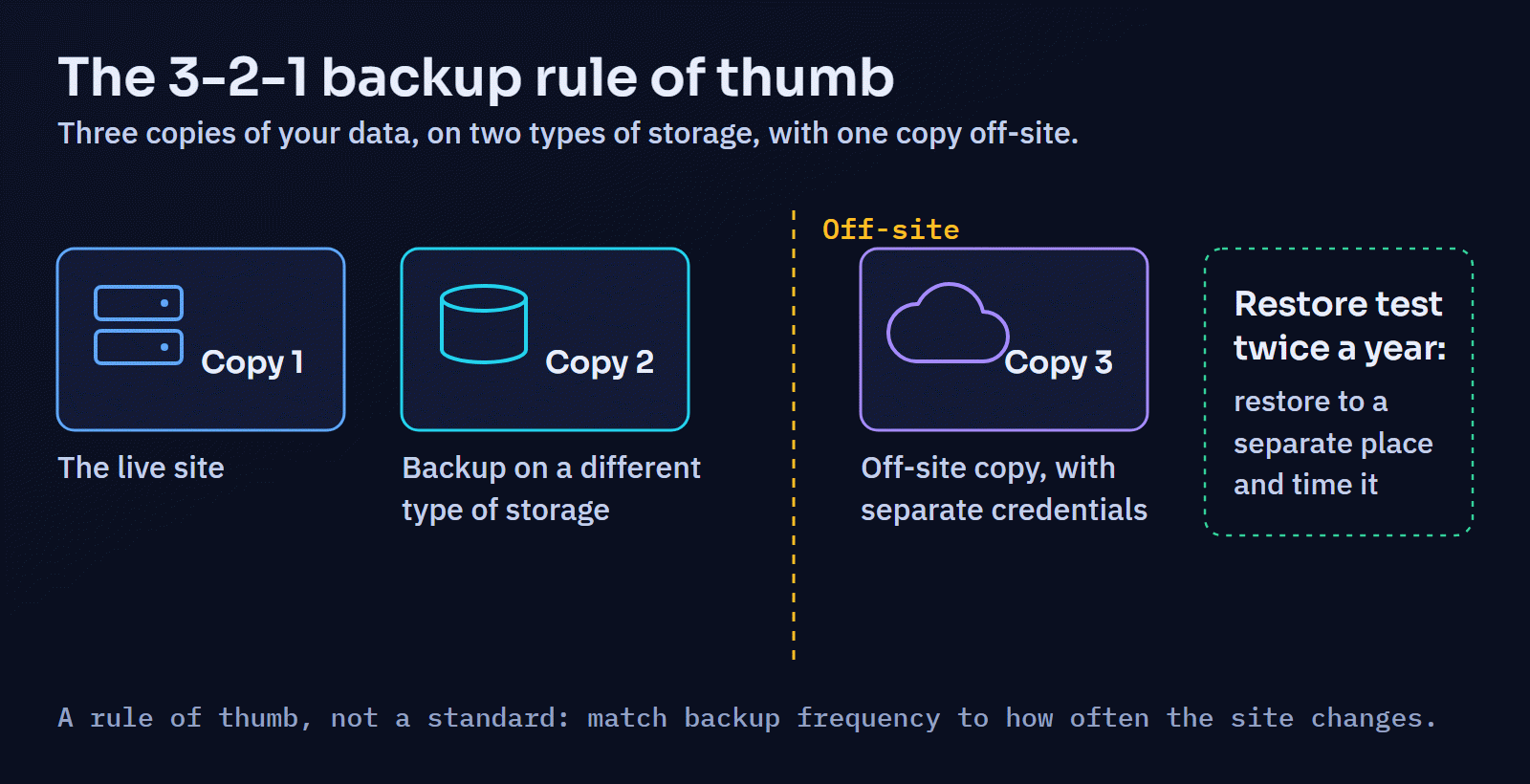
- Protect the backups. Backups contain everything on your site, often including customer data. They should be encrypted where possible and access-controlled, and at least one copy should not be deletable using the same credentials as the live site.
- Test a restore regularly. At least twice a year, restore a backup to a separate environment and check the site works. Note how long it took. That number is your realistic recovery time.
Control who has access
- Give everyone their own account. Shared logins make it impossible to know who did what and impossible to remove one person's access without disrupting everyone.
- Give the least access that does the job. An editor who writes articles does not need administrator rights.
- Remove access when people leave, including former staff, freelancers and agencies. Review the user list every quarter.
- Do not forget the accounts around the website: the hosting control panel, the domain registrar, DNS, email, analytics, payment providers and the code repository. Access to any of them can be as dangerous as access to the site itself.
- Make sure the business owns these accounts. The domain and hosting should be registered to the business, with developers given access rather than owning them.
Strengthen authentication
- Use long, unique passwords stored in a password manager, never reused across services.
- Turn on multi-factor authentication (MFA) for website administrators, hosting, the domain registrar, email and anything else that can change the site. It is one of the most effective protections against stolen passwords.
- Limit login attempts so passwords cannot be guessed at speed. Many platforms and security plugins support this; custom applications should have it built in.
Configure things securely
- Serve the whole site over HTTPS, redirect plain HTTP to it, and make sure certificates renew automatically. Free, automated certificates are available from providers such as Let's Encrypt, and most hosts set this up for you.
- Hide error details in production. Debug output can reveal file paths, database details and software versions to anyone who triggers an error.
- Keep secrets out of the code and out of public folders. Passwords and API keys belong in protected configuration, not in files that can be downloaded or in the code repository.
- Turn off what is not needed, such as in-dashboard code editors (on WordPress, setting
DISALLOW_FILE_EDIT), unused services and old test installations. - Add standard security headers, such as those that stop the site being framed by other sites and stop browsers guessing file types.
The OWASP Top Ten summarises the most common web application security risks and is a useful reference for developers building or reviewing custom functionality. For WordPress, the official hardening guide covers platform-specific settings.
Look after the domain and email
- Renew the domain automatically, keep the contact details current, and turn on the registrar's transfer lock. An expired domain takes the website and email down together.
- Keep DNS records documented so a change of host or email provider does not become guesswork.
- Set up email authentication (SPF, DKIM and DMARC) for the domain, so messages sent by your website's forms are delivered and others cannot easily send email pretending to be you.
Monitor, so you hear about problems first
- Uptime monitoring checks the site every few minutes and alerts someone when it stops responding.
- Error logs show problems visitors hit but do not report. Someone should review them, or receive alerts for new kinds of error.
- Form checks: submit your own contact form now and then and confirm the message arrives. Silent form failures can cost enquiries for weeks.
- Search Console will tell you about security issues it detects, sudden indexing problems, and other messages from Google.
- Certificate and domain expiry reminders, if renewal is not automatic.
Monitoring only helps if the alerts reach someone who will act on them. Make sure they go to a person, not an unread mailbox.
Plan for recovery
Decide in advance what happens if the site is hacked, broken by an update, or deleted. A one-page plan is enough:
- Who to contact first: the developer, the host, and anyone inside the business who needs to know.
- Where the backups are and how to restore them.
- How to take the site offline or show a maintenance page if needed.
- Which passwords and keys to change after an incident.
- Who decides what to tell customers, and whether there are legal obligations to notify anyone if personal data was involved.
- A short review afterwards: what happened, why, and what changes.
A maintenance calendar
| When | What |
|---|---|
| Weekly | Check backups completed; review uptime and error alerts; apply urgent security updates |
| Monthly | Apply routine updates (after testing on staging); test the contact form; check for broken links; review Search Console |
| Quarterly | Review user accounts and access; remove unused plugins, themes and test content; check page speed on key pages |
| Twice a year | Restore a backup to a test environment and time it; review the recovery plan |
| Annually | Confirm domain and hosting renewals and ownership; check server software versions against their support dates; review who is responsible for each task |
Speed belongs on this list too, because sites tend to slow down as content and plugins accumulate; see how to improve website speed for what to check. And if you are deciding how to build a new site, maintenance effort is one of the bigger differences between platforms, covered in WordPress vs. custom website development.
What Digital Solutions can do here
Digital Solutions helps with the engineering side of this: hosting setup and deployment on the provider you choose, including a repeatable release process, environment configuration, and backup and recovery planning; and WordPress development, including updates and repairs, which are assessed individually. To be clear about the limits: the studio does not sell hosting, operate servers, or provide 24/7 monitoring or uptime guarantees. If you are not sure who is responsible for what on your website, or whether your backups would actually restore, get in touch and start with an honest look at what is in place.